
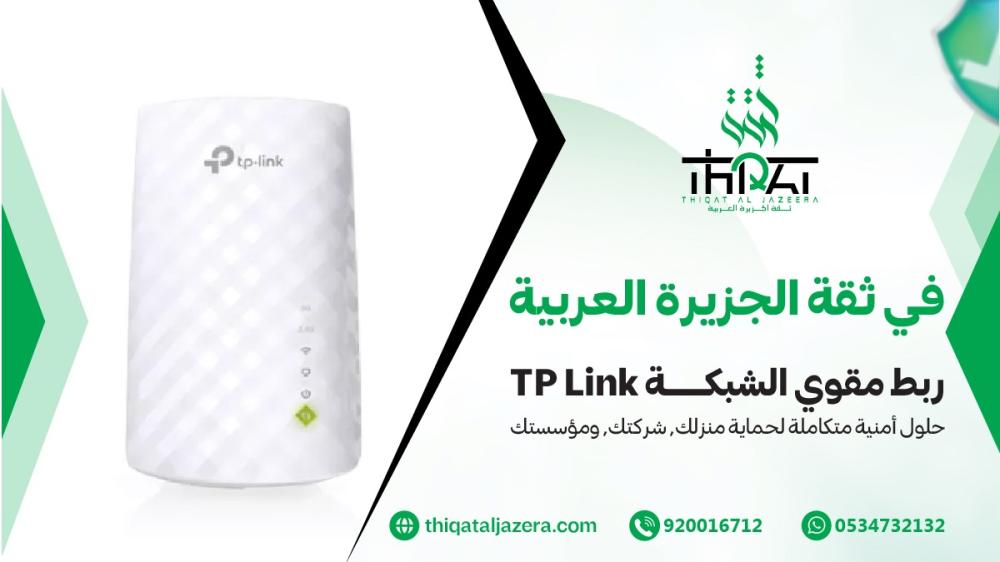

How to connect a TP-Link network extender: A comprehensive guide from Thiqah Al Jazeera Al Arabiya Security Systems
With the increasing number of devices in homes and businesses and our heavy reliance on the internet, strong Wi-Fi networks have become essential. However, users sometimes encounter weak signal strength in certain areas, leading to slow browsing or service interruptions. This is where a Wi-Fi extender comes in, especially TP-Link devices, which are among the most popular and powerful solutions on the market. In this article from Thiqah Al Jazeera Security Systems, we will explain how to connect a TP-Link Wi-Fi extender step-by-step, along with important tips for achieving optimal performance.
What is a TP-Link network extender and why do we need it?
A Wi-Fi extender is a device that receives a weak Wi-Fi signal from the original router and then rebroadcasts it more strongly to areas with weak or no Wi-Fi coverage. TP-Link is known for offering easy-to-use devices at affordable prices with powerful specifications.
You need a network extender when you encounter:
- Slow Wi-Fi in certain rooms
- Weak signal on the second floor or in distant rooms
- Network outage with devices far from the router
- Inability to operate cameras or smart home devices properly
In all these cases, the method of connecting the TP Link network booster is simple and anyone can implement it without much technical expertise.
How to connect a TP-Link network extender step by step
In this section, we'll explain the complete and reliable method, whether via the WPS button, the app , or the settings page. All methods are easy, and you can choose the one that suits you best.
First: Connect the network extender via the WPS button (easiest method)
This is the easiest and fastest way to connect a TP Link network extender , and you do not need to go into any settings.
Steps:
- Place the repeater in a location close to the router (only temporarily).
- Turn on the device and wait until the light stabilizes.
- Press the WPS button on the router.
- Within two minutes, press the WPS button on the TP-Link network extender.
- Wait until the indicator light turns steady.
- Move the device to the location where you want to strengthen the signal.
When is this method appropriate?
- If the router supports WPS
- If you want a simple and quick method without setup
Second: How to connect a TP-Link network extender via the application (TP-Link Tether)
If you want complete control over the device, the app is the best option.
Steps:
- Download the app from the Google Play or Apple App Store.
- Plug the power booster into the electricity and wait for it to light up.
- Open the settings on your phone and connect to the repeater network (it appears as TP-Link_EXT).
- Open the Tether app and you will find the device in the interface.
- Tap the device and follow the steps to select your home network.
- Enter your Wi-Fi password.
- Save the settings and move the amplifier to the appropriate location.
Advantages of this method:
- Signal strength control
- Blocking unwanted devices
- Updating the software easily
- Monitoring devices connected to the network
Third: How to connect the TP Link network extender via the settings page (192.168.xx)
This method is useful if there is no application or if you do not want to use WPS.
Steps:
- Turn on the amplifier.
- Turn on Wi-Fi from your phone or computer and connect to the TP-Link virtual network.
- Open your browser and type:
- http://tplinkrepeater.net
- or 192.168.0.254
- Enter a username and password (usually admin).
- Search for the original router network.
- Select it and enter the password.
- Save the settings.
- Move the device to the desired location.
Its features:
- Suitable for all models
- It gives you full manual setup
The best place to put a TP-Link network extender
Because signal quality depends on the location of the booster, we at Al Jazeera Al Arabiya Security Systems advise you to choose a suitable location to ensure the strongest result:
- There should be a gap between the router and the area with weak signal.
- Avoid placing it behind thick walls
- Stay away from devices that cause interference (microwaves, metal devices, large televisions).
- The light on the device should be medium or strong.
The goal is for the amplifier to get a good signal so that it can distribute it strongly.
Important tips for achieving optimal performance
- Restart the booster once a week
- Update the software (firmware) from the application or the official website.
- Use a different network name than the primary network for easier differentiation.
- In companies, it is preferable to place more than one amplifier and connect them together.
Why does the Arabian Peninsula Trust website recommend TP-Link for security systems?
The website thiqataljazera.com offers security products and systems, and is always working to provide effective devices for homes and businesses. TP-Link is considered the ideal choice because:
- Their prices are reasonable
- Compatible with most types of routers
- Easy to set up
- It offers strong and continuous coverage.
- It supports a large number of devices
The website also provides a technical support team that can guide you in placing the correct device or choosing the most suitable model for your space.
Frequently asked questions about how to connect a TP-Link network extender
1. Do I need technical expertise to implement the TP Link network extender connection method?
No, the method is simple and anyone can implement it within minutes.
2. Can the amplifier be moved after it has been connected?
Yes, after setup you can move it anywhere as long as it picks up a good signal from the router.
3. Does the booster affect internet speed?
It works by strengthening the signal, but the speed depends on the underlying internet strength.
4. Can a TP-Link repeater be connected to any router?
Yes, it works with almost all types of routers.
5. What is the best way to connect?
If the router supports WPS, it's the easiest option; if it doesn't, the app is the best.
It's important to understand that connecting a TP-Link Wi-Fi extender isn't just about turning it on and plugging it into your network. It also involves a basic understanding of how it works and how it distributes the signal. While the extender doesn't increase your basic internet speed, it ensures a strong signal reaches rooms or offices far from the router, providing a more stable connection for watching videos, working, playing games, and monitoring cameras. Many homes have "dead zones" that routers struggle to cover, and this is where TP-Link comes in, bridging the gap and distributing the signal evenly. Therefore, Thiqat Al-Jazeera Security Systems (thiqataljazera.com) recommends using modern extenders because they offer robust security systems and strong encryption, keeping your network secure during expansion.
Because users are always looking for the best possible Wi-Fi experience, knowing how to properly connect a TP-Link Wi-Fi extender can significantly improve your daily life, whether you're working from home, running your smart devices, or even covering your home security cameras. In addition, TP-Link offers smart features like remote app control, display of connected devices, and signal strength monitoring for each part of your home, giving you greater flexibility. Thiqah Al Jazeera Security Systems also recommends testing the signal in several locations before final installation to ensure you've chosen the ideal spot for the extender to broadcast a strong, uninterrupted network.